




Three steps to a printed page
-
Type the award, such as "Certificate of Achievement", or pick one from the list.
-
Type one name per line. Each name prints on its own certificate.
-
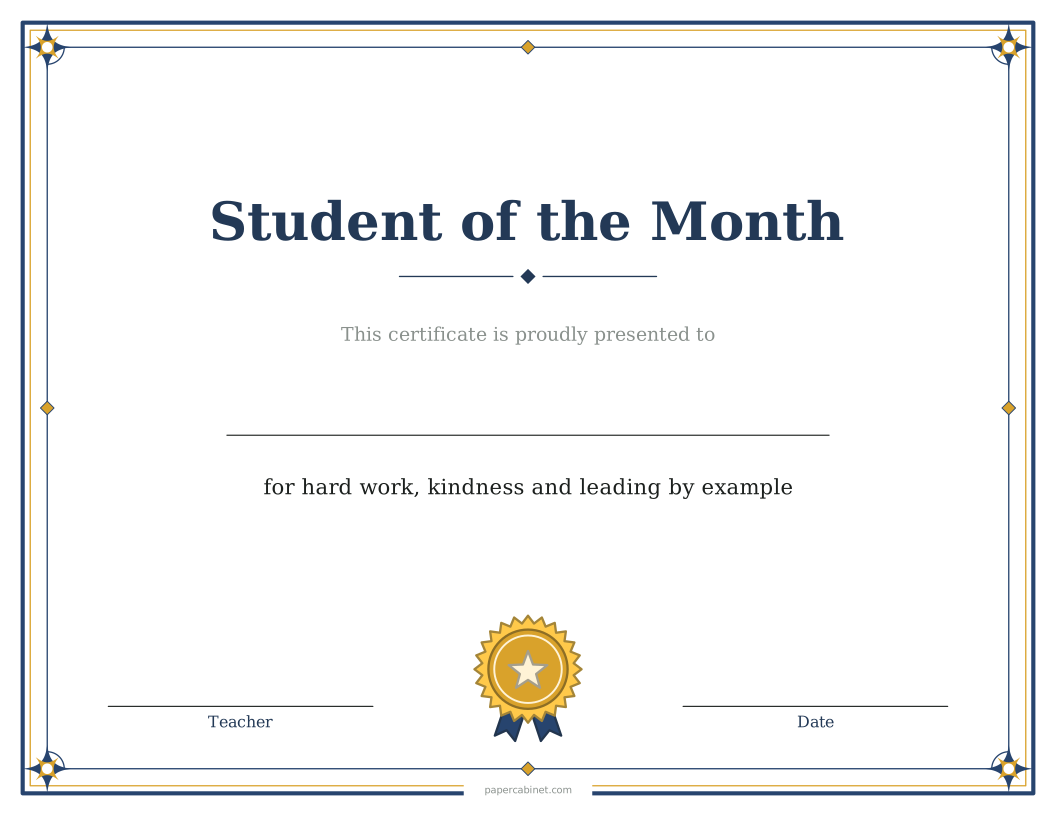
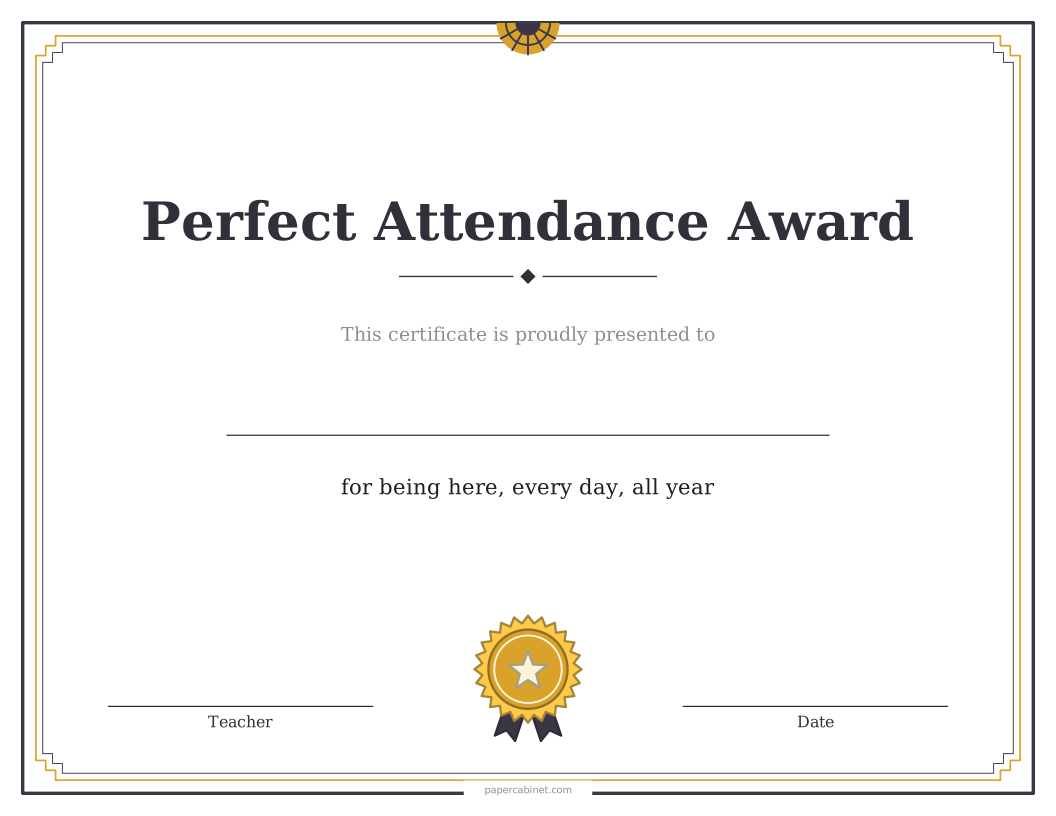
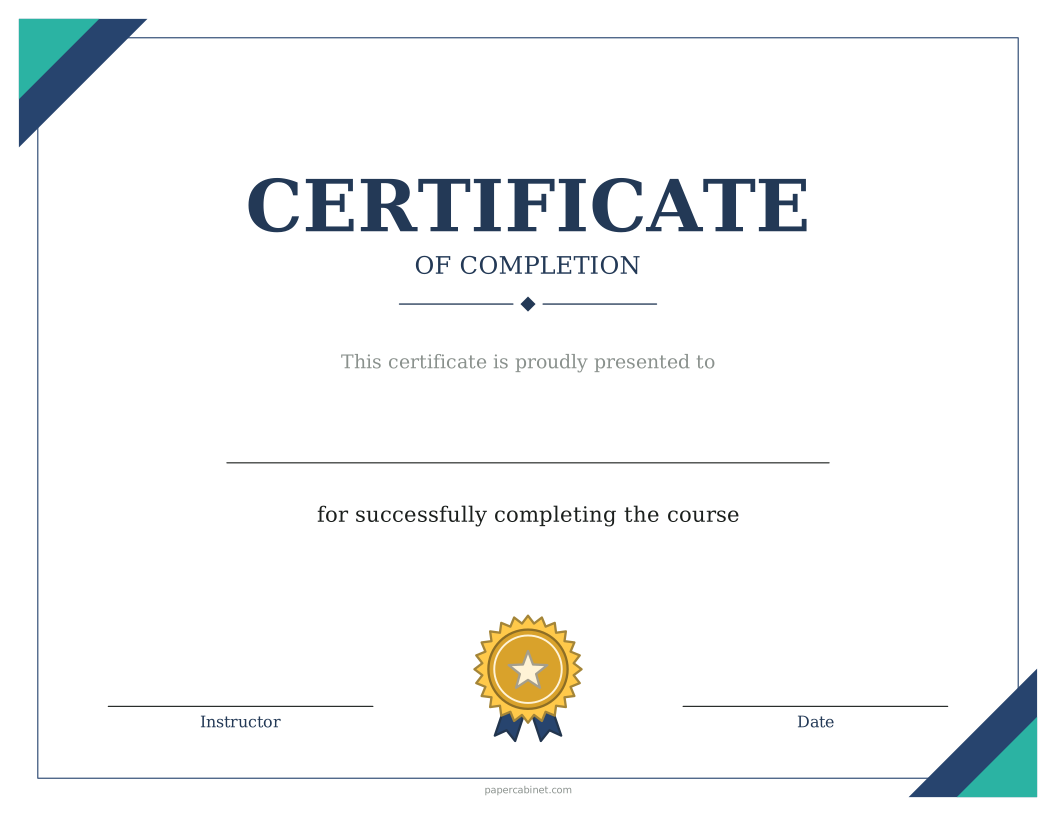
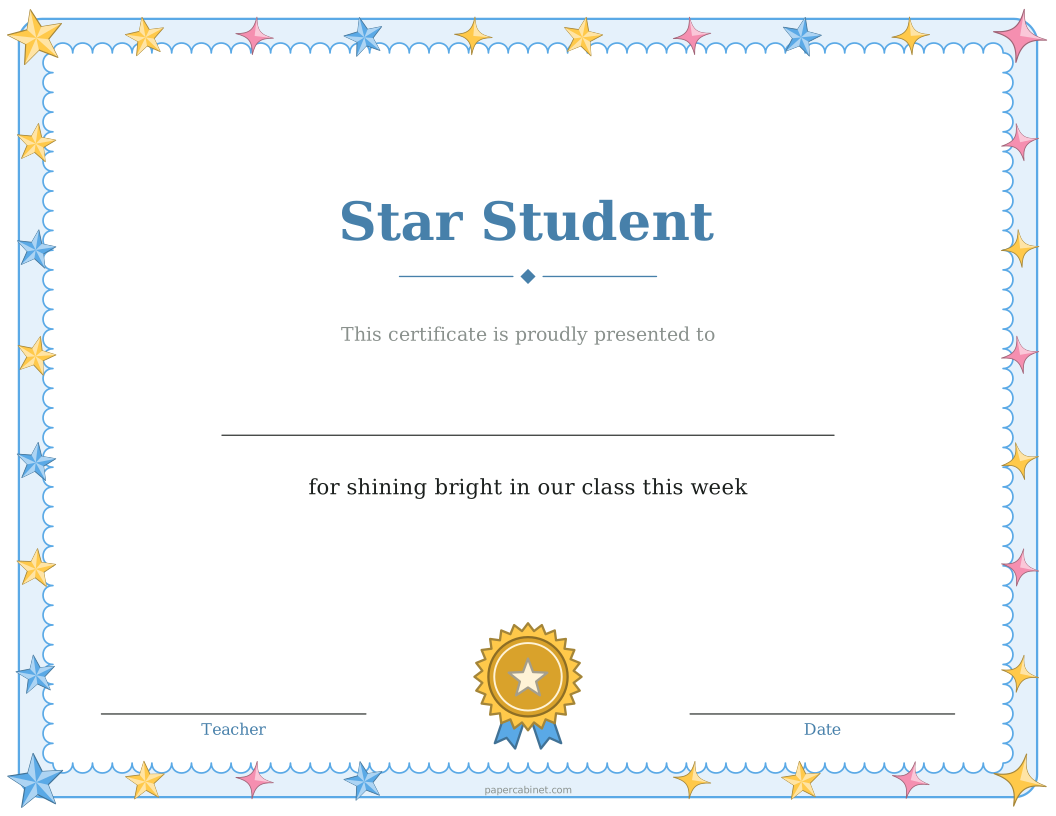
Choose a border, then press Print. Certificates print sideways (landscape).
Printing certificates that look good
Plain printer paper works, but 65 lb cardstock or ivory "parchment" paper makes a certificate feel like something worth keeping. Both are sold by the ream at office supply stores and print fine on home inkjets.
In the print window, set scale to 100% and margins to "None" so the border sits evenly. If your printer leaves a white edge anyway, that is normal; the border is placed far enough in that none of it gets cut off.
Writing what the award is for
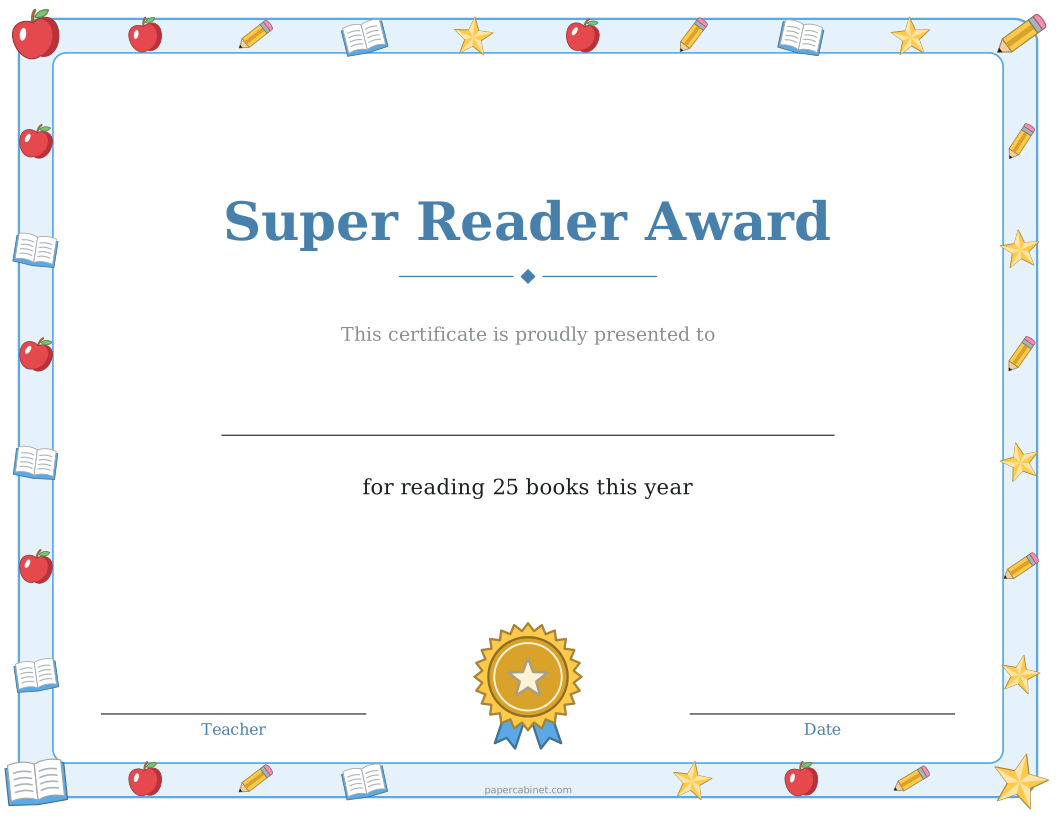
"For outstanding effort" is fine, but a specific line means more to the person getting it: "for reading 40 books this year" or "for helping set up every Saturday market". Keep it under two lines so it stays easy to read.
If each person needs a different reason, print the certificates with the reason empty and write it in by hand. A handwritten line is often the part people remember.
Frequently Asked Questions
Can I make certificates for my whole class at once?
Yes. Type every name in the Names box, one per line, and you get one certificate per name. Up to 60 at a time.
Can I print a blank certificate and write the name in?
Yes. Leave the Names box empty and the certificate prints with a line where the name goes.
What paper should I print certificates on?
Cardstock (65 to 80 lb) or parchment paper. Both feed through most home printers. Regular paper works too if that is what you have.
Can I change the date and who signs it?
Yes. Open "More options" to set the name under the signature line, such as "Principal" or "Coach", and to print a date. Leave the date empty to write it in.